SketchUp dark mode on Windows
SketchUp for Windows only comes with a light interface. Deonyx gives it a dark one: menus, toolbars, trays and dialogs go dark, while your model in the 3D view keeps its real colors.
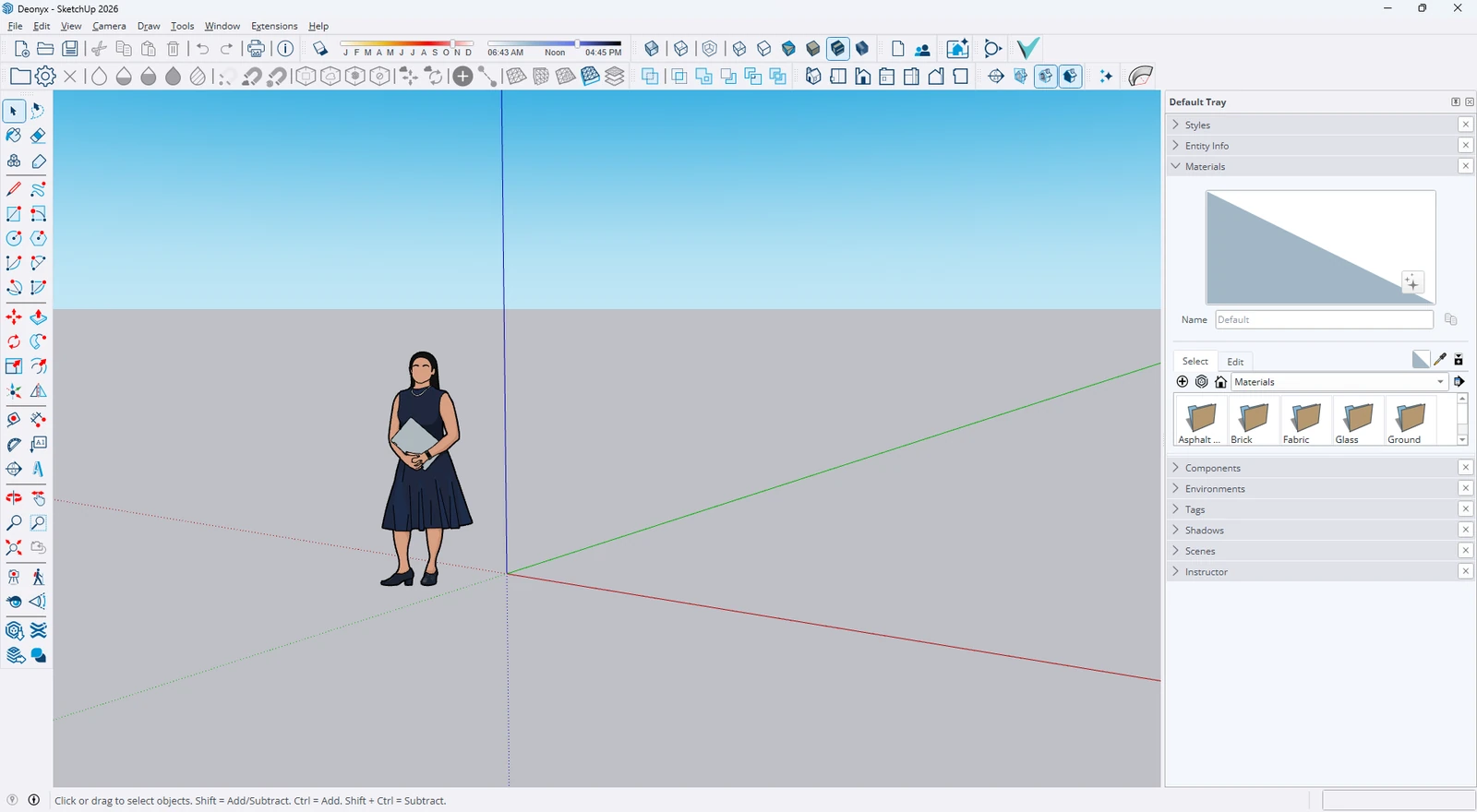
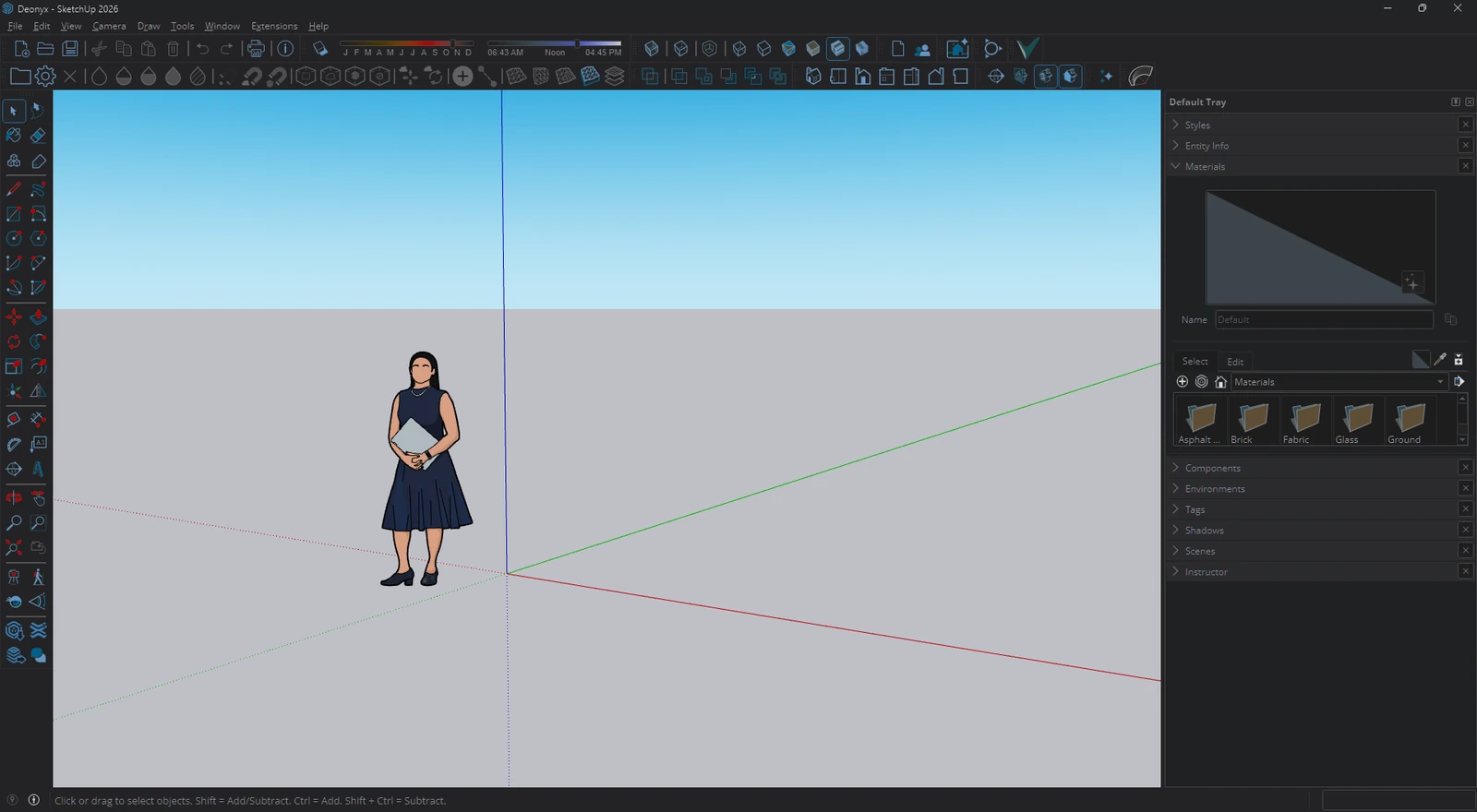
How to get it
- Download Deonyx with the button below and install it. It installs for your user only, without administrator rights.
- Add SketchUp. Click the gem in the tray, choose Add an app and pick SketchUp from the open or installed programs.
- That's it. SketchUp is dark whenever it's open.
Ctrl+Alt+Fswitches the app in front on and off,Ctrl+Alt+Devery app at once.
Your model stays the way it renders
Deonyx finds SketchUp's 3D view by itself and leaves it alone, so materials, textures, styles and shadows look exactly as they do without it. Pictures in the Materials tray and photos in dialogs keep their colors too. Only the interface around them goes dark.
Not an invert
Windows' color filters can invert the whole screen, but then red turns cyan and every texture looks like a film negative. Deonyx flips only how light each pixel is, measured the way the eye sees it, so a red stays red and your color choices stay true.
Questions
Does it slow SketchUp down?
Hardly. Darkening runs on the graphics card in well under a millisecond per frame, and only while a window changes.
Does it change SketchUp itself?
No. Nothing is installed into SketchUp or injected into it. Deonyx draws a dark layer on top of its windows, and closing Deonyx brings the light look back.
What about LayOut, AutoCAD or other programs?
Add them the same way, or let Deonyx darken every light window at once. Apps that have their own dark mode, like AutoCAD, can keep using it.
Is it really free?
Yes. Deonyx is open source under the GPL-3.0, with no ads, no account and no trial.
Free and open source (GPL-3.0). Windows 10 and 11. Nothing you see leaves your PC.